







1
/
6
Why are some wallets inaccessible?
Some wallets may become inaccessible after you switch devices because the encryption keys that protect them are securely tied to your previous device. These device-bound keys cannot be transferred through standard cloud backups or phone-to-phone migration tools.<br><br>Seed phrase wallets and private key wallets marked as <b>Unavailable</b> must be re-imported on your new device using the original seed phrase or private key.<br><br>Social login wallets and MPC wallets are not tied to a specific device. You can access them again by logging in to your account.
Some wallets may become inaccessible after you switch devices because the encryption keys that protect them are securely tied to your previous device. These device-bound keys cannot be transferred through standard cloud backups or phone-to-phone migration tools.<br><br>Seed phrase wallets and private key wallets marked as <b>Unavailable</b> must be re-imported on your new device using the original seed phrase or private key.<br><br>Social login wallets and MPC wallets are not tied to a specific device. You can access them again by logging in to your account.
1
/
6
Which wallets are affected?
Only wallets marked as <b>Unavailable</b> after switching devices need to be re-imported.<br><br>Some wallets may remain accessible while others become unavailable because different wallets may use different encryption methods.<br><br>For each unavailable wallet, re-import it using its original seed phrase or private key.
1
/
6
How do I restore access?
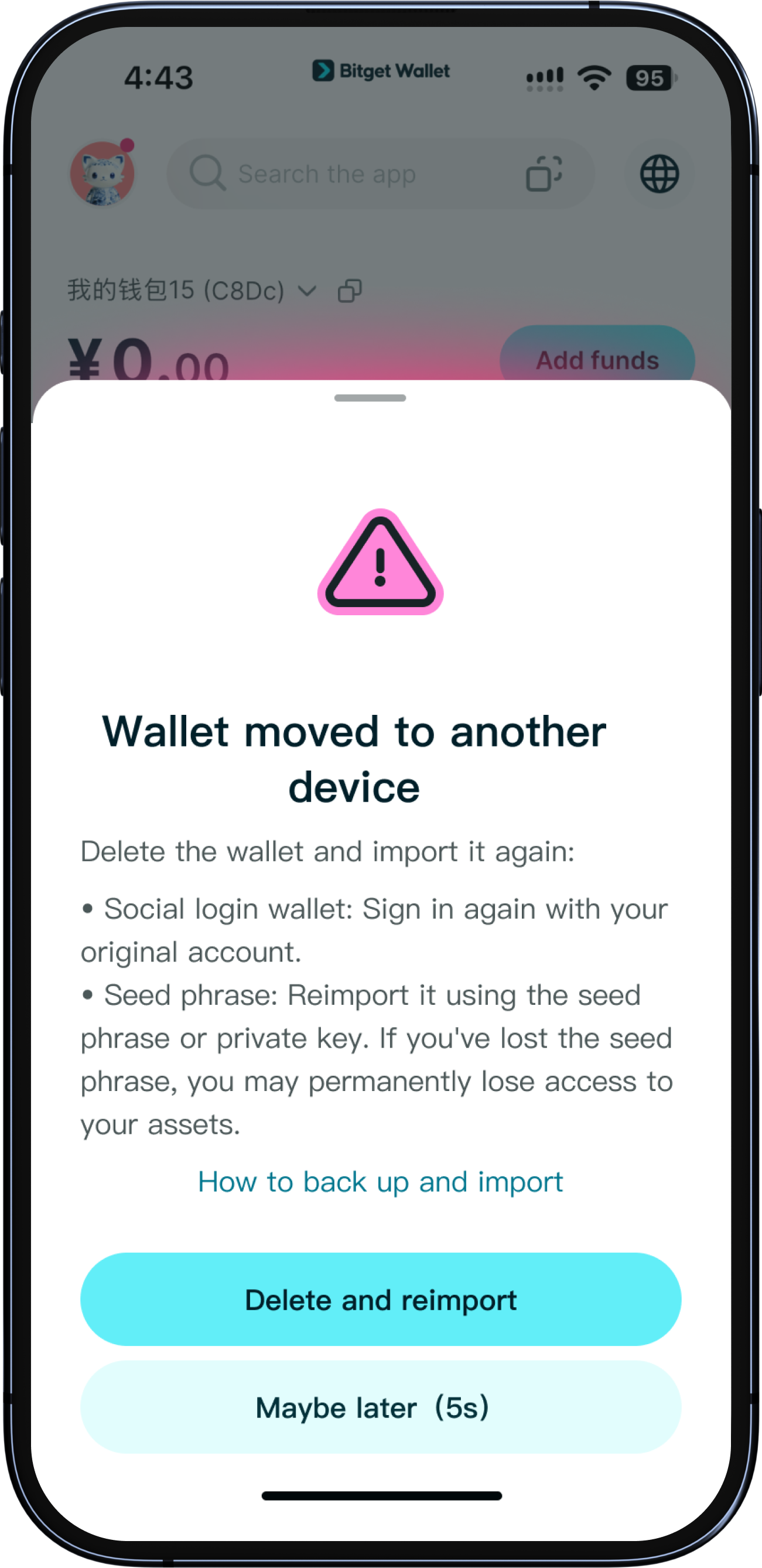
Before you begin, make sure you have the correct seed phrase or private key for every wallet you want to restore. Do not erase, reset, sell, or dispose of your old device until you have successfully restored all affected wallets on your new device.<br><br>1. On your new device, open Bitget Wallet and go to <b>Wallet</b>.<br>2. Select the wallet marked as unavailable.<br>3. Tap <b>Delete and reimport</b> and enter your PIN to confirm.<br>4. Enter the original seed phrase or private key to reimport your wallet.<br>5. Repeat these steps for each affected wallet.<br><br><b>Important:</b> Removing a wallet from the app only removes it from your current device. It does not affect your onchain assets. However, you will need the correct seed phrase or private key to restore access.<br><br>Do not remove a wallet unless you have confirmed that you have the correct recovery credentials.
1
/
6
What if I no longer have my seed phrase?
If your old device is still accessible, open Bitget Wallet and go to "Wallet". Select the affected wallet and tap "Export seed phrase" or "Export private key". Back up your recovery credentials securely before proceeding. If you have lost your recovery credentials and can no longer access your wallet on your old device, you may permanently lose access to its assets. Bitget Wallet is a non-custodial wallet and cannot recover your seed phrase or private key on your behalf. Never share your seed phrase or private key with anyone, including anyone claiming to represent Bitget Wallet Support.
1
/
6
How do I prevent this from happening again?
Back up every wallet's seed phrase when you first create it. Go to "Wallet", select a wallet, and tap "Back up seed phrase". Store seed phrases offline, not in screenshots or cloud storage. Before switching devices, confirm you have the seed phrase or private key for every hardware-encrypted wallet. After switching, verify all wallets are accessible before decommissioning the old device. Note: iCloud and Google Drive backups copy the encrypted file but not the hardware key. Hardware-encrypted wallets will still appear unavailable on a new device even if the backup completed successfully.
1
/
6
Why are some wallets inaccessible?
Some wallets may become inaccessible after you switch devices because the encryption keys that protect them are securely tied to your previous device. These device-bound keys cannot be transferred through standard cloud backups or phone-to-phone migration tools.<br><br>Seed phrase wallets and private key wallets marked as <b>Unavailable</b> must be re-imported on your new device using the original seed phrase or private key.<br><br>Social login wallets and MPC wallets are not tied to a specific device. You can access them again by logging in to your account.
